

WebXR Integration Test
This post validates the WebXR integration with automatic environment and gallery discovery.
XR Scene
On desktop, drag to look around. On a VR headset, click “Enter VR” for full immersion.
Scene Configuration
- Auto-Discovery: Enabled (scans ./environments/ folder)
- Environment: Automatically detected cubemaps
- VR Support: Quest 3, Vision Pro, PCVR
- Desktop: OrbitControls (drag to rotate)
- VR Features: Snap turning, fade transitions
Instructions
Desktop:
- Click and drag to rotate the view
- Scroll to zoom in/out
- Smooth OrbitControls navigation
VR Headset (Quest, Vision Pro, etc.):
- Click “Enter VR” button (bottom right)
- Use right thumbstick to rotate (snap turning)
- Look around naturally with head movement
Auto Gallery
This gallery auto-discovers all images from the /slides/ folder:
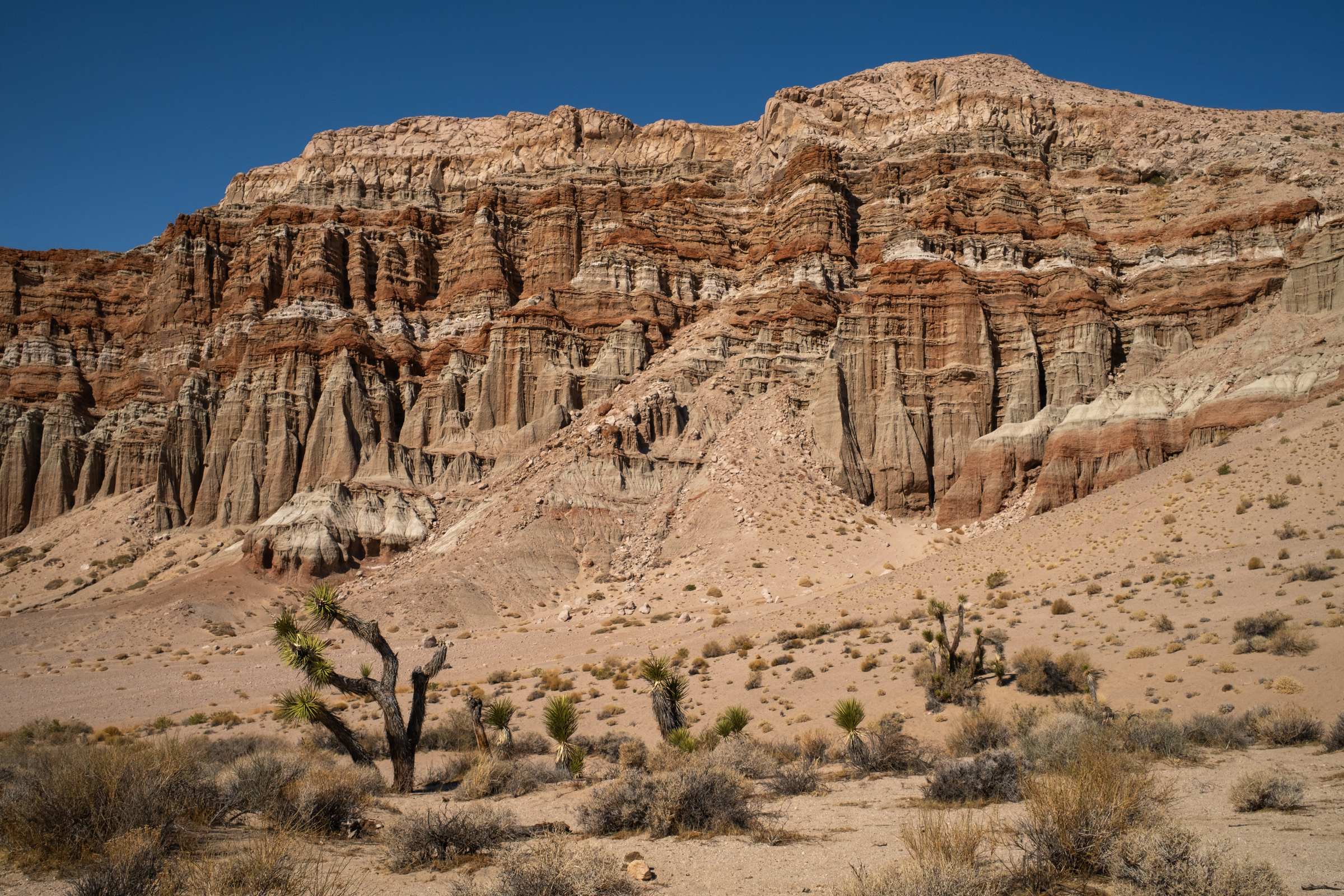
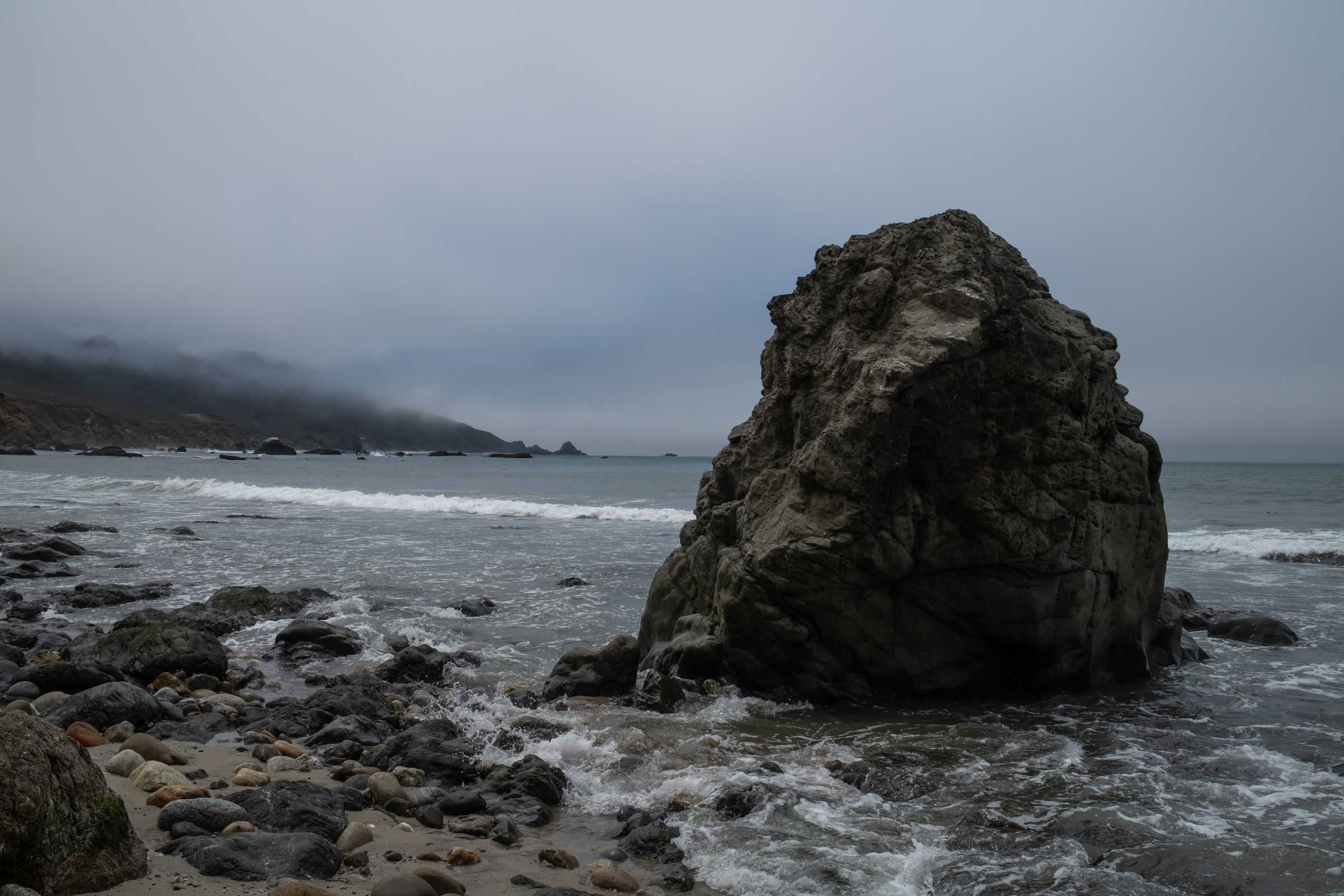
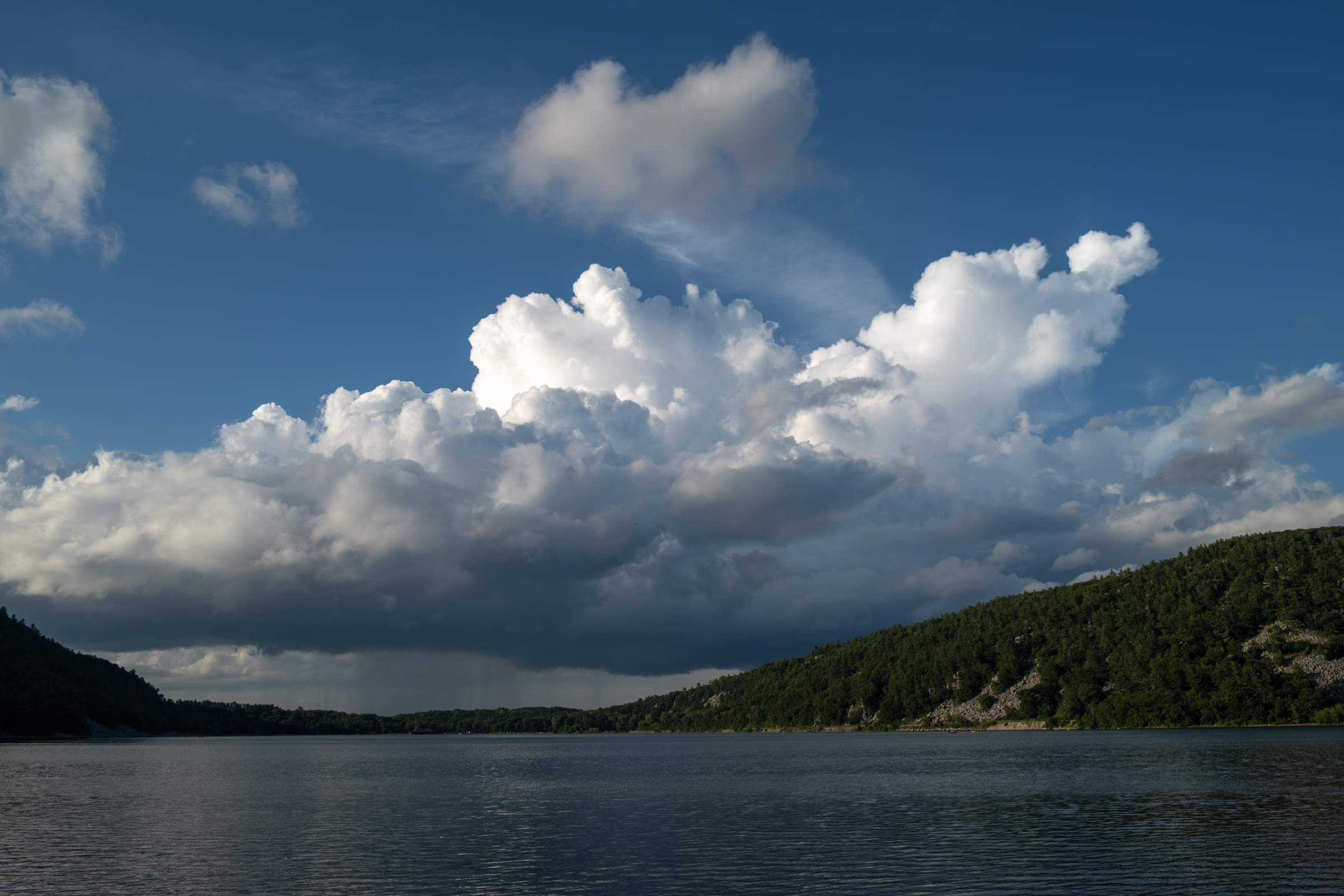
Auto-Discovery: This gallery automatically detected 3 image(s) from the /slides/ folder.
Just drop images in that folder and they'll appear here!
Auto 3D Model Viewer
This section auto-discovers all 3D models from the /3dmodels/ folder:
Suzanne
Auto-Discovery: Found 1 3D model(s) in the /3dmodels/ folder.
Drop .glb files there and they'll appear automatically!
Technical Features
This test demonstrates:
- ✅ Auto-Discovery: Environments from
/environments/folder - ✅ 360° Cubemap: Immersive panoramic environment
- ✅ Desktop Mode: OrbitControls for mouse navigation
- ✅ VR Mode: WebXR with snap turning for comfort
- ✅ Auto Gallery: PhotoSwipe gallery from
/slides/folder - ✅ Auto 3D Models: Model viewers from
/3dmodels/folder - ✅ Zero Config: Just drop files in folders!
Environment Details
If using colored test squares, you should see:
- Right (px): Red
- Left (nx): Blue
- Up (py): Green
- Down (ny): Yellow
- Front (pz): Cyan
- Back (nz): Magenta
If using a real 360° photo, you’ll see your panoramic scene!